After an order is processed, you can adjust delivered information if corrections are needed.
This article explains how to recall orders, reprocess delivered equipment, and create copy of filed jobs to keep equipment and documentation accurate.
Related articles:
Recall orders
Recall orders to undo the order delivery and adjust the equipment, document or order details. You can recall an entire order, recall selected order lines or recall specific processed equipment.
To recall orders:
- Open an order and go to Processed items.
- Select a processed transaction or processed item.
- Select Recall > Choose one of the following:
- Recall selected equipment to recall specific equipment.
- Recall all order lines to recall the entire order.
- Add a comment on the recalling (optional).
The outcome depends on the type of form used for the selected equipment.
| Form | Outcome |
|---|---|
| Generated documents contain info of one equipment | Only selected equipment is recalled. Other equipment and order lines are not affected. |
| Generated documents contain info of multiple equipment ((M) forms) | If an (M) form is used in the selected order line, all equipment in the same processed transaction is recalled. Other order lines are not affected. |
| Oppdrett (M) form | All equipment in the same transaction that uses Oppdrett (M) is recalled, regardless of order line. This means multiple order lines can be affected at the same time. |
A warning message appears if the order contains an (M) form or Oppdrett (M) form.
You can review the recall history after the recall is completed.

Recall is disabled when:
- Equipment ownership has changed.
- New jobs have been created for the equipment.
- New documents or sub equipment have been added to the equipment.
- Some equipment is currently rented out.
Reprocess orders
Reprocess orders to adjust details of delivered items while keeping them available to the customer. You can use reprocessing to update equipment details, order information or documents.
To reprocess:
- Open the order and go to Processed items.
- Select a processed transaction or processed item > Select Reprocess.
- Edit numbering values (optional).
- Review the expected outcomes.
- Select Finish.
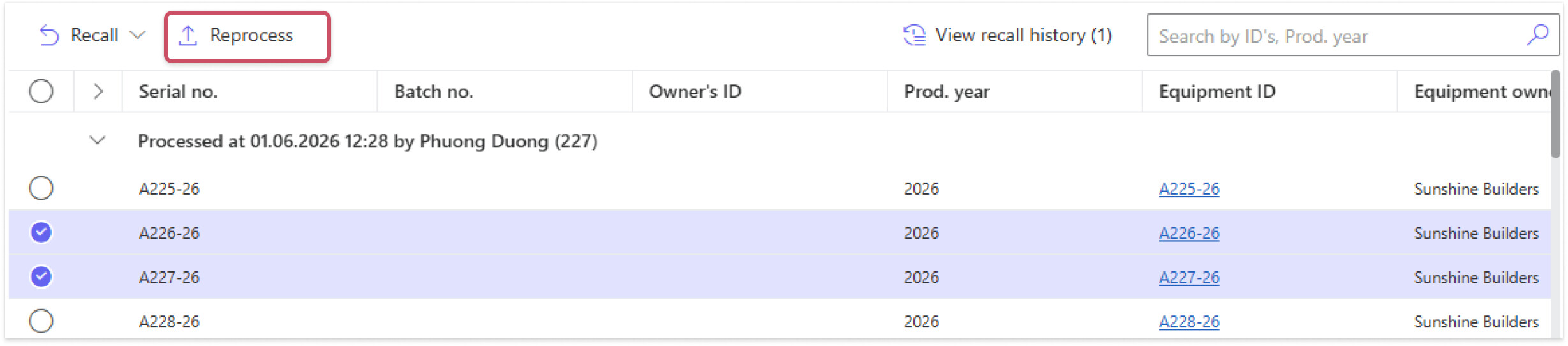
While reprocessing, the system:
- Updates equipment details and properties.
- Generates new documents and inactivates old documents.
- Keeps current issues on the equipment.
- Keeps existing equipment intervals unchanged.

The affected equipment varies depending on the type of form used on the selected equipment.
| Form | Outcome |
|---|---|
| Generated documents that contain one equipment | Only selected equipment is reprocessed. Other equipment and order lines are not affected. |
| Generated documents that contain multiple equipment | If an (M) form is used in the selected order line, all equipment in the same transaction is reprocessed. Other order lines are not affected. |
| Oppdrett (M) | All equipment in the same transaction that uses Oppdrett (M) is reprocessed, regardless of order line. This means multiple order lines can be affected at the same time. |
A warning message appears if the order contains an (M) form or Oppdrett (M) form.
Reprocessing is disabled when:
- The Action field of the order line is not “Create equipment and file job”.
- The selected equipment was last processed more than 30 days ago.
- The selected equipment belongs to different processed transactions.
Create copy of a filed job
Create a copy of a filed job to update information and file a revised version. The document generated from the original job is set to inactive.
To create a copy of a filed job:
- In Onix Work, go to Equipment and select the equipment.
- In the Jobs related section, select the job whose document you want to revise.
- Select Create copy.
- Complete the checklist or update other information if needed. If you need to update equipment information, such as properties, update the equipment before creating the job copy.
- Select File.

Expected outcome:
- The job number receives an additional “rev. x” suffix to indicate the number of revisions.
- The revised document appears at the top with “Active” status.
- The revised document may automatically become inactive, depending on your company setting for Automatically set old documents inactive when filing mandatory jobs in Onix Work > Settings > System setup > Delivery and job)
Create copy of job to revise document is disabled when:
- Equipment ownership is changed.
Related articles: