Equipment groups let you organize multiple equipment under one structure. You can apply rules so that when a group is moved to a new location or area, all included equipment automatically inherit the same values.
Configuration
Create equipment groups for your own company
Create equipment groups under your company’s ownership to organize, track and move equipment altogether.
- In Onix Work, go to Settings > Equipment groups.
- Select New > Fill in the group details > Create.
| Field | Instructions |
|---|---|
| Group name | Enter the relevant value. This field is mandatory. |
| Use group’s info for equipment | Turn on if all equipment in this group must follow the group’s location and area |
| Location | Select an option |
| Area | Select an option |
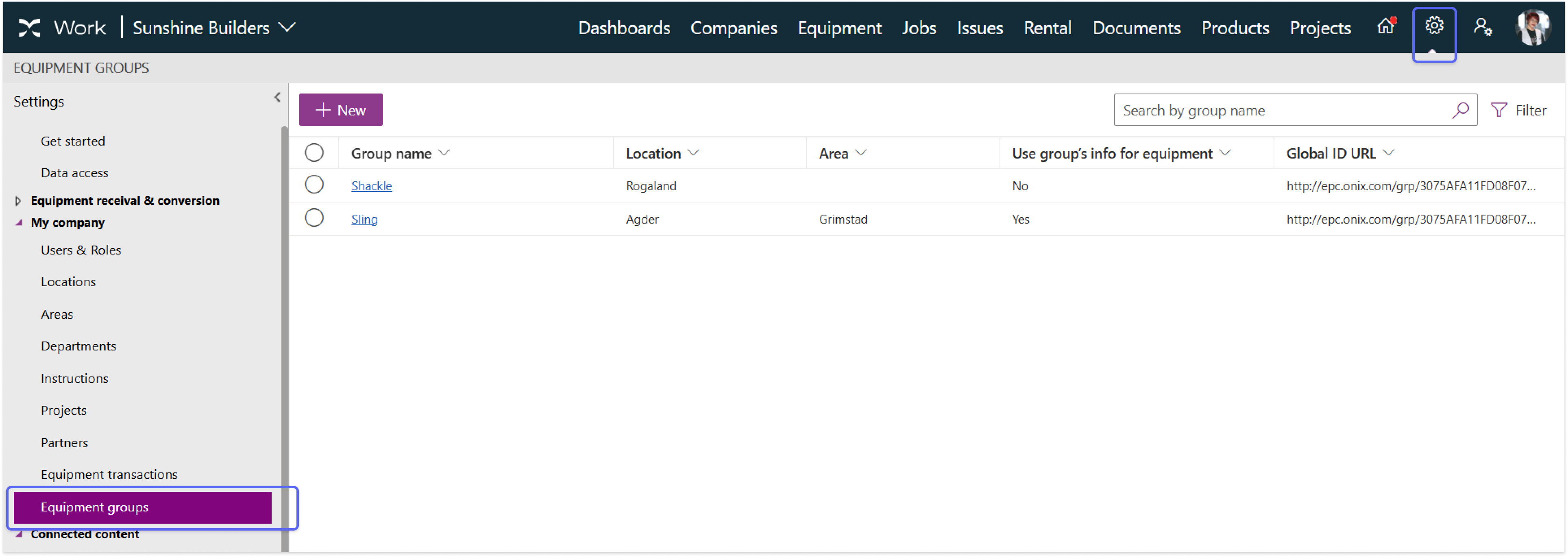
After creating an equipment group, you can:
- Edit: Select the equipment group > Edit > Enter the new values > Save.
- Delete: Select the equipment group > Delete.
To find an equipment group, use the search box or open the filter panel and apply filter criteria.
Create equipment groups for non-member companies
Create equipment groups under a non-member company’s ownership to organize, track and move equipment altogether.
- In Onix Work, go to Companies
- Select a non-member company > Select Equipment groups
- Select New > Fill in the group details > Create
| Field | Instructions |
|---|---|
| Group name | Enter the relevant value. This field is mandatory. |
| Use group’s info for equipment | Turn on if all equipment in this group must follow the group’s location and area |
| Location | Select an option |
| Area | Select an option |


After creating an equipment group, you can:
- Edit: Select the equipment group > Edit > Enter the new values > Save.
- Delete: Select the equipment group > Delete.
Add, update and remove groups from equipment
Unique equipment
Add unique equipment to a group
You can add unique equipment to an equipment group either by editing its details or by creating a transfer transaction. If the group applies its location and area to all equipment, the equipment’s information updates accordingly.
To edit the equipment details:
- In Onix Work, go to Equipment.
- Select the equipment > Edit.
- In the Equipment group field, choose an option from the list > Save.
To create a transfer transaction:
- In Onix Work, go to Equipment.
- Select the equipment.
- In the Equipment transactions section, select New transaction.
- Select “Transfer” as the transaction type.
- Turn on Transfer to equipment group.
- Choose an equipment group.
- Select a reason and enter comments if needed > Save.

You can also add multiple items to an equipment group at once by editing their details.
- In Onix Work, go to Equipment.
- Select the items from the equipment list.
- Select Edit > Edit all.
- Choose an equipment group > Save.
Move equipment to a new group
You can move equipment between groups by editing its details or creating a transfer transaction. If the destination group applies its location and area to all equipment, this information updates accordingly.
To edit the equipment details:
- In Onix Work, go to Equipment.
- Select the equipment > Edit.
- Choose a new equipment group > Save.
To create a transfer transaction
- In Onix Work, go to Equipment.
- Select the equipment.
- In the Equipment transactions section, select New transaction.
- Select “Transfer” as the transaction type.
- Turn on Transfer to equipment group.
- Select the destination group.
- Select a reason and enter comments if needed > Save.
You can also move multiple items to another equipment group at once by editing their details.
- In Onix Work, go to Equipment.
- Select the items from the equipment list.
- Select Edit > Edit all.
- Choose the new equipment group > Save.
Remove equipment from a group
You can remove an equipment from an equipment group by editing its details or creating a transfer transaction.
To edit the equipment details:
- In Onix Work, go to Equipment
- Select the equipment > Edit
- In the Equipment group field, choose “None”
- Save
To create a transfer transaction:
- In Onix Work, go to Equipment.
- Select the equipment.
- In the Equipment transactions section, select New transaction.
- Select “Transfer” as the transaction type.
- Turn on Transfer to equipment group.
- Choose “No equipment group”.
- Select a reason and enter comments if needed.
- Save
You can also remove multiple items from an equipment group at once by editing their details.
- In Onix Work, go to Equipment
- Select the items from the equipment list
- Select Edit > Edit all
- In the Equipment group field, choose “None”
- Save
Stock and consumable goods
Add stock and consumable goods to a group
You can add all quantity of a stock or consumable goods to an equipment group by editing its details or by creating a transfer transaction.
To edit the equipment details:
- In Onix Work, go to Equipment.
- Select the equipment > Edit.
- Choose a new equipment group.
- Save.
To create a transfer transaction:
- In Onix Work, go to Equipment
- Select the stocks or consumable goods
- In the Equipment transactions section, select New transaction
- Select “Transfer” as the transaction type
- Turn on Transfer to equipment group
- Choose the destination equipment group
- Enter the transferred quantity
- Select a reason and add comments if needed
- Save
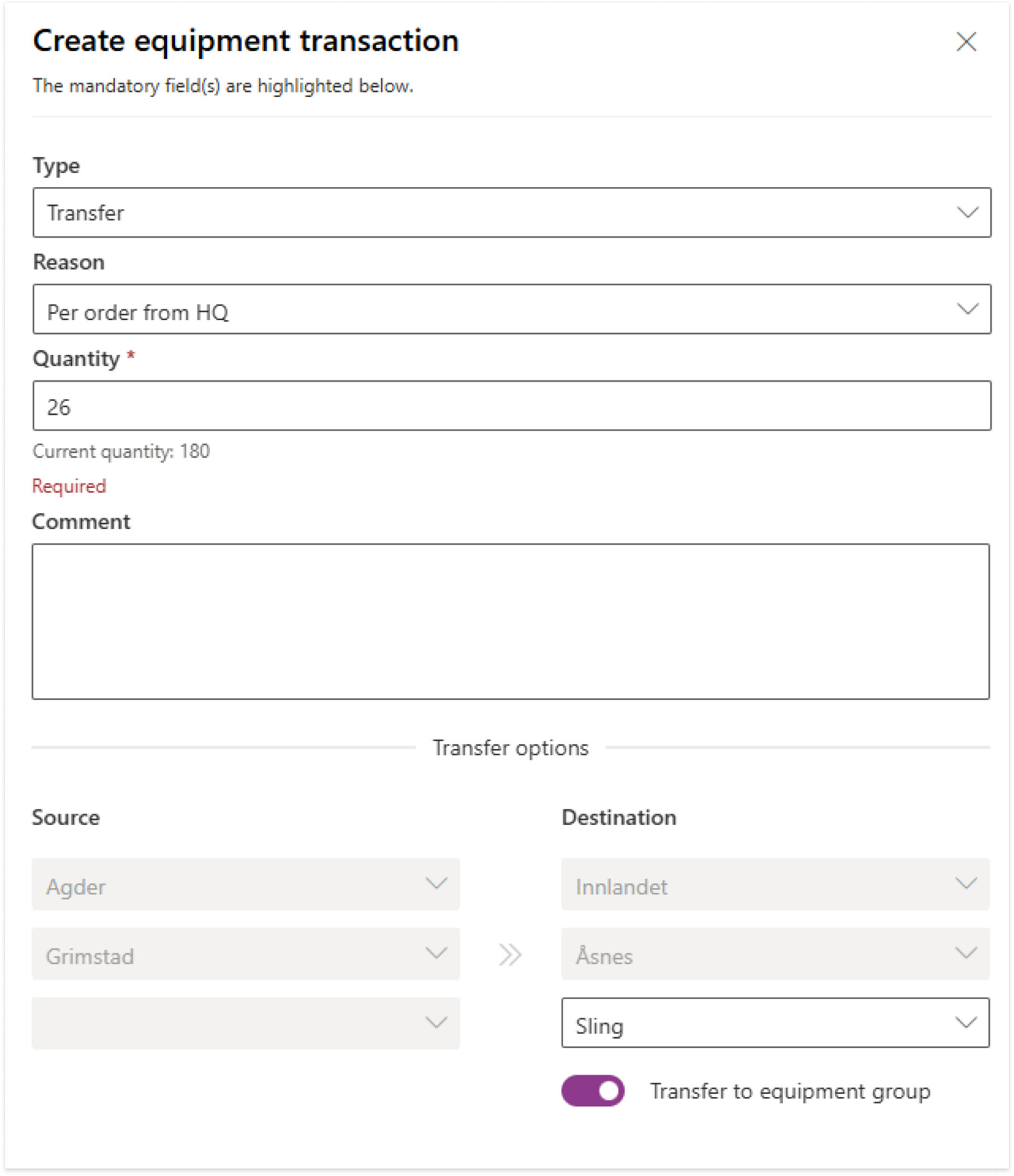
To add a partial quantity of stock or consumable goods to a group, create a transfer transaction. This is only possible if neither the source nor the destination group applies its information to the equipment.
Move stock and consumable goods to a new group
You can move stock or consumable goods between groups by editing its details or creating a transfer transaction. Editing moves the full quantity to the new group, while a transfer transaction lets you move either the full quantity or only part of it.
To edit the equipment details:
- In Onix Work, go to Equipment.
- Select the equipment > Edit.
- Choose a new equipment group.
- Save.
To create a transfer transaction:
- In Onix Work, go to Equipment
- Select the equipment
- In the Equipment transactions section, select New transaction
- Select “Transfer” as the transaction type
- Enter the transferred quantity
- Turn on Transfer to equipment group
- Select the destination group
- Select a reason and enter comments if needed > Save
After a transfer transaction, the quantities update at both source and destination equipment groups. If the destination group does not yet have the item, a new stock or consumable item is created there with the entered quantity.
Remove the stock and consumable goods from a group
You can remove a stock or consumable goods from an equipment group by editing its details or creating a transfer transaction. Editing moves the full quantity from the new group, while a transfer transaction lets you remove either the full quantity or only part of it.
To edit the equipment details:
- In Onix Work, go to Equipment.
- Select the equipment > Edit.
- Choose a new equipment group.
- Save.
To create a transfer transaction:
- In Onix Work, go to Equipment
- Select the equipment
- In the Equipment transactions section, select New transaction
- Select “Transfer” as the transaction type
- Turn on Transfer to equipment group
- Select the destination group
- Select a reason and enter comments if needed
- Save
Move an equipment group to a new location
You can change an equipment group’s location and area within its owner company.
- In Onix Work, go to Settings > Equipment groups for your company’s equipment group, or Companies > Equipment groups for a non-member company’s equipment group.
- Select the group > Edit.
- Choose a new location and area > Save.
