Release date: October 24, 2025.
Discover the 2025 Autumn release, designed to enhance efficiency for equipment suppliers, owners, and inspectors with new features across Onix applications.
 Download the Norwegian release notes.
Check out the highlights →
Summary


All applications
 Equipment groups: Track, plan, and move related equipment as a unit
Equipment group is a new entity in Onix that lets you organize multiple equipment under one structure. You can apply rules so that when a group is moved to a new location or area, all included equipment automatically inherit the same values. This ensures consistency across records and minimizes manual updates, especially when you plan, move or track a large amount of equipment.
 Learn more.
 Equipment - Track quantity and location changes using equipment transactions
Equipment transactions record every change in quantity or location, providing complete traceability of how equipment moves in, out, and between locations. All transactions are stored in a history log within each equipment record. Each transaction includes a reason, which can be either a system reason (predefined by Onix) or a custom reason (defined by your company), ensuring clear and consistent tracking.
The use of equipment transactions depends on the equipment class:
- For stock and consumable goods, quantity changes now create new transactions. To update quantities, you must create a new transaction instead of editing values directly.
- For unique equipment, transfer transactions can be used instead of editing ownership details.
Additionally, a new Quantity field is available for display and filtering in the Equipment module to enhance the management of stock and consumable goods.
New control categories for life-saving appliances
We’re adding 20 new control categories (LX to L19) to improve the tracking and maintenance of life-saving appliances, such as lifeboats, davits, hooks, and rafts. The new control categories align with the structure and terminology of the SOLAS Convention, the LSA Code, and IMO Resolution MSC.402(96), enhancing compliance with certified servicing requirements and ensuring Onix aligns with international maritime safety standards.

Onix Work
New
Dashboards - Redesigned for easier use and faster performance
The Dashboards module has been redesigned to improve usability and performance. It includes all your familiar features, now with a cleaner layout and faster load times to help you monitor data more efficiently. Creating and editing charts is also more intuitive, making the setup process simpler and quicker.

Projects - Move equipment between locations using transfer projects
Administrators can now enable transfer projects by setting up project variants. In these projects, equipment moves from one location to another and does not return to the source location when the project ends. Users can send and receive both individual equipment and equipment groups in transfer projects.
Projects - Plan transfers of stock goods, consumable goods, and equipment groups
You can now plan transfers of stock goods, consumable goods, and equipment groups in transfer projects. These options are only available for transfer projects, and not for rental or general projects.
Projects - Complete requests and projects with send and receive information
Projects and their requests can now be marked as completed in Onix Work without physically scanning items in Onix Tool Store. In addition, you can record the actual quantity or equipment details that were sent and received directly within each request. This helps project managers oversee projects from planning to completion and keep accurate records of equipment movements.
Projects - Generate project summary
Share clear and structured project information with a project summary – a PDF file that lists all equipment in selected projects. Each summary includes up to 1,000 project requests.

Enhanced
 Equipment - Generate QR codes with equipment properties
In the Equipment module, in addition to equipment details, you can now include properties in the QR codes for each item. You can also choose to show the property names and select their display language from 13 available languages.


Equipment - “Equipment group” field renamed to “Keyword”
On equipment, the Equipment group freetext field has been renamed to Keyword to better reflect its purpose of helping you find and organize equipment. The field continues to work as before, allowing you to enter any text freely or choose from predefined suggestions.
Products - Add, update, or remove forms for multiple products at once
You can now select multiple products and change their default forms for orders in a single action. This enhancement makes it faster and more efficient to manage forms across several products at the same time.

Products - Edit up to 5000 products at once
In the Products module, the limit for bulk editing product details has been increased to 5,000 items per action. Kindly note that related elements such as forms, documents, and rules are not included in this enhancement.
Issues - Export issue list to Excel files
In the Issues module, you can now select and export up to 10,000 items to an Excel file with your preferred display fields. If no issues are selected, the export will include all results in the view based on the current filters.

Issues - “Product no.” available as a display field
You can now add Product no. as a display field in your own views. Including product numbers in the views to identify, sort, group and filter issues based on specific products more easily.
Issues - Group the list and set default grouping option in your own views
You can now group issues in the list view or save a default grouping option in your custom views. This helps you organize and review issues more effectively based on your preferred criteria, such as status or progress.
Company registration numbers are shown with country-specific terms
In company profiles and job forms, the label for the company registration number now uses the local term based on the company’s country. For example, if the company is based in Spain, the label appears as Código de Identificación Fiscal (CIF). The local term is then translated according to your selected display language.
This update only affects the field label; the registration number itself remains unchanged.
Projects - New fields for display, sorting, grouping, and filtering
New display fields, filter criteria, and sorting and grouping options are now available in the Projects module, such as responsible people and locations.These additions make it easier to find and manage projects efficiently.
Projects - Upload documents to projects
You can now upload documents directly to projects, making it easier to store and access project-related files in one place.

Onix Tool Store
New
Send and receive equipment in transfer projects
You can now scan to send and receive equipment or equipment groups between locations as planned. Each scan updates the project automatically with sent and received details, keeping records consistent and traceable between Onix Tool Store and Onix Work.
Enhanced
Settings - Manage settings of multiple Onix Tool Store devices efficiently
The Onix Tool Store device management interface in Onix Work has been redesigned under Settings > Licenses > Device management. The new table view lets you quickly see which devices are active and review their current settings. You can also select multiple devices and edit their settings at once for faster management.
Along with this update, the “Manage Onix Tool Store” privilege has been renamed to “Manage devices”, while keeping the same functionality.

Send - Prevent sending equipment with issues or overdue inspection
Administrators can now define project variants that block Onix Tool Store users from sending equipment that are not compliant or safe for use. This restriction applies to both sending and reserving equipment in projects.
The rule affects unique equipment, stock goods, and consumable goods that meet any of the following conditions:
- Have at least one NC issue
- Have at least one overdue RC issue
- Have at least one overdue mandatory inspection
When such equipment is reserved or sent in a project, the system stops the action and displays an error message.
Send - View available equipment by product across areas and placements
When sending equipment for project requests related to products, you can select View all areas and placements to see where equipment is available. This helps you quickly identify which areas and placements have the items you need.

Receive - Create issues and view equipment details
In Onix Tool Store, when receiving equipment for multiple projects, you can register new issues directly on equipment using the three-dot menu. You can also expand the equipment details to view more information about each item.
Access full equipment history from equipment details
Equipment history is now available wherever equipment details are shown. This includes checkout, check-in, and bulk receiving. The history shows all changes to the equipment, just like in Onix Work, so you can see how the equipment has been used over time.
Stock goods become visible in checked-out equipment views
Stock goods now stay in the lists of checked-out equipment until they are fully checked in. This means items remain visible if they have not yet been returned or partially checked-in. The update applies to both served and self-service modes.
Add additional checkout information for stock and consumable goods
When checking out stock and consumable goods, you can now add additional information about the checkout, such as comment, place to be used, and expected return date. This enhancement applies to both the self-service and served modes.
Served mode - Equipment lists adjust display fields by check-in and checkout actions
The equipment lists in served mode now adjust the display fields based on the action. In the lists of checked-out equipment, you can see more details about past checkout records. Meanwhile, in the lists of available or all equipment, the information focus on equipment details and current quantity.

Onix Worker
Enhanced
Add additional checkout information for stock and consumable goods
When checking out stock and consumable goods, you can now add additional information about the checkout, such as comment, place to be used, and expected return date.

Onix Pick and Pack
New
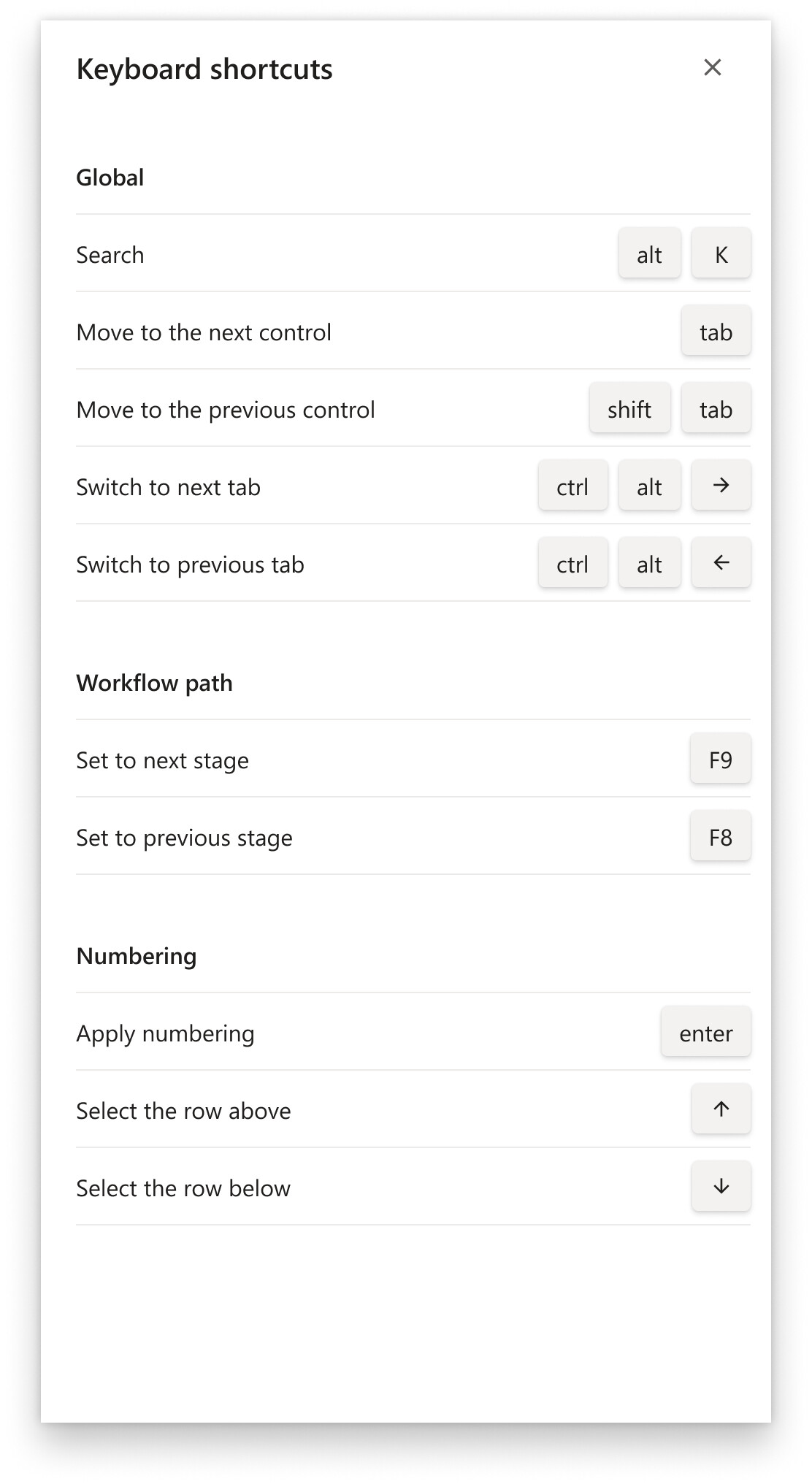
 Navigate controls faster with keyboard shortcuts
Use keyboard shortcuts in Onix Pick and Pack to quickly move between fields, tabs, and workflow stages, or to apply numbering to order lines. You can navigate controls, switch tabs, and progress through workflow stages using standard key combinations.
To view the full list of available key combinations, open any order line and select More (the three-dot button on the header) > Keyboard shortcuts.
Settings - Manage Onix Pick and Pack devices from Onix Work
Onix Pick and Pack devices are now manageable in Onix Work under Settings > Licenses > Device management. From there, you can identify all devices that are running the Onix Pick and Pack (Windows) application and review their active status in one place.
Here’s how:
- In Onix Work, go to Settings > Licenses > Device management.
- Select device using Onix Pick and Pack or Onix Pick and Pack Plus license.
- Edit the device’s active status > Save.