All personal information of your Onix user, including name, profile picture, signature, password, and many more are managed in one place - Onix Account. Onix Account helps you work with multiple organizations and Onix Express portals with a single user account.

Overview: Quick access and quick links
Quick access to your Onix applications
Depending on your assigned role and license, you can access different Onix applications.
- Those Onix applications which you have access to will be shown here
- You can click on the icons to quickly use those Onix applications

Quick links to see organizations and change password
- Organizations: See which organizations you have access to.
- Password: Manage the password of your user account.

Quick access to Onix Express portals of your suppliers or inspectors
You can only access Onix Express by using the link provided by your suppliers or inspectors.
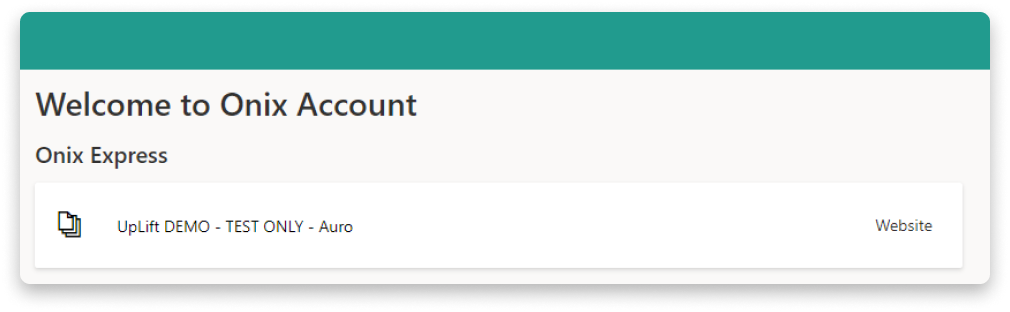
- If you are an Express user and don’t have access to any Onix Express, you will see this panel:

- To go directly to the supplier’s website, click Website and look for the link to access their Onix Express
- If the Website not found message pops up, the supplier or inspector has not set up the link to their company’s website yet.

Your info: Edit your information
Change profile info
You can edit your name, email, mobile phone, and preferred language. Here’s how:
- On the left-side panel, select Your info.
- In the “Profile info” section, select Edit profile info.

Change profile picture
- On the left-side panel, select Your info.
- Select Change picture.
- Select the round shape or Add a photo button.
- Choose your photo.
- Fit your photo into the lightbox (a square area with brighter color). Use the bar below to zoom in or zoom out. You can also remove the current one and add another photo.
- Click Save.
Change signature
- On the left-side panel, select Your info.
- Select Change signature.
- Select the rectangle shape or Add a signature button.
- Choose your signature.
- Fit your photo into the lightbox (a rectangle area with brighter color). Use the bar below to zoom in or zoom out. You can also remove the current and add another signature.
- Click Save.
Change password
- On the left-side panel, select Your info.
- Select Change password. An email titled “Reset your Onix Work password” will arrive in your mailbox.


- Open the email and click the Reset the password link.
- Fill in your new password, and give it a hint so that you will not forget it in the future.
- Click Continue.

Organization: Manage your organizations
Current organizations
Here you can find all the organizations that you currently have access to.
- To make an organization your home organization, select Set as home organization. That company will appear first every time you use Onix apps.
- To terminate your own access to any organization, select Leave.
Open invitations
Some organizations trust your email domain. They allow you to automatically become their user and gain access to their organization in Onix apps. Those organizations appear in the Open invitations section.
Select Create user to become that organization’s user.

Onix Express: Manage access to Onix Express portals
Current Onix Express portals
Onix Express is used by equipment suppliers and inspectors in order to distribute equipment documentations to customers who are not members of Onix Work.
You can only log into an Onix Express portal using the supplier or inspector’s access link. For more information, please refer to Access to Onix Express for equipment documentation
- On this page, you can see all the Onix Express portals that you’re currently an Express user.
- To terminate your own access to an Onix Express of any supplier or inspector, click on Leave.
Open invitations
Some organizations trust your email domain. They allow you to freely become their Express user and gain access to their Onix Express portals. Those organizations appear in the Open invitations section.
Select Create user to become that organization’s Express user.

My competencies: Manage your own competencies
You can manage your personal competencies in Onix Account. You can add new competencies for yourself and find competencies that are created by your administrators. Any competencies that are automatically created after you confirm qualifications while working with equipment also appear here.

To create your own competency:
- Open Onix Account.
- In Onix Work, select your profile picture at the top-right corner, then select My Onix Account.
- In a mobile Onix app, select Menu > Settings > My Onix Account.
- In Onix Account, go to My competencies.
- Select New.
- Enter the competency details.
| Field | Description |
|---|---|
| Competency name | Select from the list of competencies predefined by your adminstrator |
| Type | The type of qualification that you have completed |
| Expiration date | Determines whether the competency ever expires and, if applicable, on what date |
| Conducted by | The person who conducted your training or certification |
| Conducted date | The date when the training or certification took place |
| Comment | Your additional notes about the competency |
After you create a competency, you can:
- Edit your own competency details
- Delete the competency that you created or that are auto-created via your confirmation.
